LinkedIn carousels in 2026: the full guide (5x more clicks than other formats)

Summary
Carousels get 5x more clicks than any other format on LinkedIn, but the method changed: since 2023 LinkedIn removed native upload, and now you upload them as a PDF (each page is a slide). This 2026-updated guide covers sizes, an 8-slide structure that converts, design mistakes, and how to build them in Canva in under 20 minutes.
Carousels are the format with 5x more clicks in 2026, but there's a twist almost nobody knows: LinkedIn killed native uploads years ago, and if you don't know how the PDF method works, you're leaving the platform's most powerful format on the table.
Why carousels are still the top format in 2026
The numbers are striking. According to aggregate data from several LinkedIn analytics tools, carousels generate average engagement of 3.71%, more than double video (1.6%) and single images (1.5%). If you post three times a week and one of those is a carousel, that single post can generate more interaction than the other two combined.
Average impressions tell the same story: carousels reach an average of 1,451 impressions per post, more than double video. The main reason is dwell time: the time a user spends interacting with the content before continuing to scroll. When someone starts swiping through slides, they stay on your post for several seconds. The LinkedIn algorithm reads that pause as a signal of value and distributes your content to more people.
The swipe mechanic also has an interesting psychological effect: it creates commitment. Once someone swipes past the first slide, they're more likely to reach the end than if they were simply reading a long text. Each slide is a micro-commitment that reinforces attention. That's why carousels work especially well for dense educational content: you split information into digestible chunks, and the user voluntarily advances from one to the next.
The change nobody tells you about: LinkedIn no longer allows native carousels
In 2023, LinkedIn quietly removed the option to upload native carousels, i.e., the feature that let you drag several individual images to create a swipeable sequence. If you try it now, that option simply isn't there. Many content creators who weren't aware kept looking for the "carousel" button for weeks without understanding what had happened.
The current method is different but equally effective: you upload a PDF file where each page corresponds to one slide of the carousel. LinkedIn automatically turns that PDF into a swipeable experience in the feed, looking exactly like native carousels used to. The end result for the user consuming it is identical. The only difference is in how you create it.
This transition has a hidden upside: working in PDF gives you total control over each slide's design from tools like Canva, Adobe Illustrator, or Figma. Before, native upload limited certain formatting aspects. Now you can design with as much precision as you want, export as high-quality PDF, and upload directly. The process takes between 15 and 25 minutes if you already have a base template.
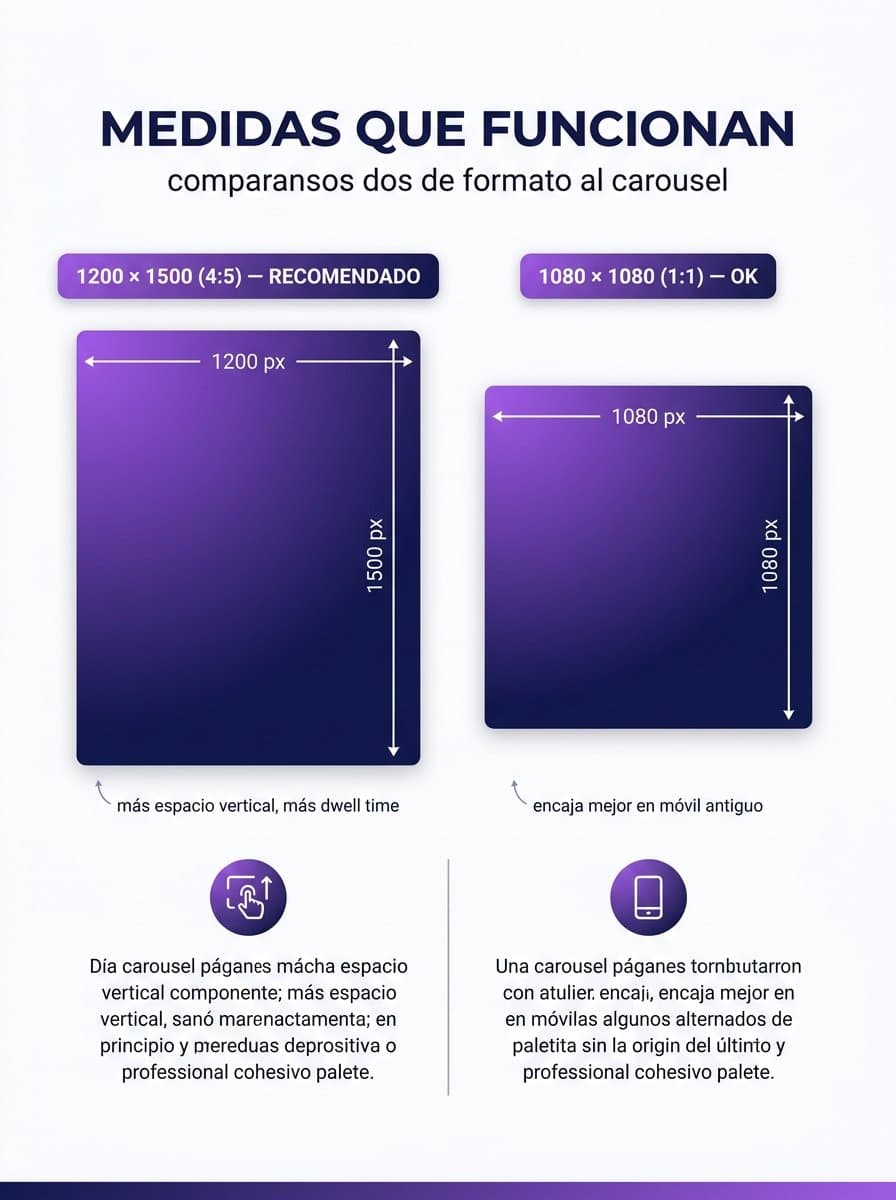
Exact sizes: 1200×1500 (4:5) vs 1080×1080 (1:1) and when to use each
Choosing dimensions isn't trivial. The vertical 1200×1500 px format (4:5 ratio) wins on dwell time because it takes up more vertical space on a mobile screen, which forces the user to stop longer before being able to keep scrolling. On modern devices with large screens, this format is clearly superior for maximizing each slide's visibility.
The square 1080×1080 px format (1:1) is still valid and has its place. It works especially well on older phones or smaller screens where the vertical format can get awkwardly cropped. It's also preferable when your slide design is primarily graphic with centered elements, since the square framing gives more compositional margin in every direction.
Whatever format you pick, always respect the safe zone: leave at least 100 pixels of margin on every edge to keep LinkedIn's UI (your profile name, action buttons, slide indicators) from covering important design elements. Critical text, headlines, and CTAs always have to live inside this safe zone. In Canva you can turn on margin guides to visualize it easily.
The 8-slide structure that converts
After analyzing hundreds of high-performing carousels on LinkedIn, there's an 8-slide structure that shows up repeatedly in the posts with the most engagement. It's not a rigid formula but a framework you can adapt to any topic:
Slide 1: Cover (hook).It's the only slide visible before the user decides to swipe. It needs a punchy headline that creates curiosity or promises a clear benefit. Always include visible text indicating there's more ("swipe to see" or an arrow), because without that cue many users don't even try to pass the first slide.
Slide 2: Problem.Frame the pain or challenge your content will solve. This slide connects emotionally with the reader and justifies why it's worth continuing. A good problem slide makes the user think "that's exactly what happens to me."
Slide 3: Insight 1.The first concrete value point. It should be specific, actionable, and surprising. Avoid generalities; the best insights are ones the reader hadn't considered before.
Slide 4: Insight 2. Build on the previous one. You can go deeper in the same area or introduce a complementary angle. Keeping visual consistency between insight slides helps the carousel feel like a coherent whole.
Slide 5: Insight 3. The third value point. By now the reader is invested in the content, so you can include denser or more technical information than in earlier slides.
Slide 6: Insight 4. The last value point before the wrap-up. It can be the most practical of all, the one the reader can implement immediately after finishing the carousel.
Slide 7: Action / Summary.Synthesize the key points and propose a concrete next step. Don't repeat everything word for word; offer a big-picture view that reinforces the content's value. This is the slide most often saved for later.
Slide 8: Signature / CTA.Your name, photo, positioning, and a clear call to action: follow you, visit your profile, reply in comments, or whatever's relevant for your goal. Without this slide, all the value generated doesn't convert into anything for your personal brand.

Proven templates: example format, list format, before/after format
Example format.Starts from a real case or a concrete situation and uses it as the thread for the whole carousel. It works exceptionally well when you have a personal story, a client case, or your own experiment that illustrates the point you want to make. The reader follows the narrative with interest because there's a protagonist and an arc. Use it when your content is experiential or when you want to humanize abstract concepts.
List format.The most direct structure: each slide contains one numbered point from a list. "7 mistakes you're making on LinkedIn" or "5 copywriting techniques for your profile." It's the easiest format to consume and the one that generates the highest save rate, because users save it as a reference. Use it when you have a clear list of similar value points and don't need narrative development for each.
Before/after format.Shows a transformation: how something looked before applying a method or change, and how it looks after. It's visually high-impact and generates strong engagement because the contrast is immediately clear. Works especially well for copywriting (bad copy vs. good copy), profile design, content strategy, or any area where the visible result is clear. Use it when you can show a tangible, obvious improvement.
How to build them in Canva step by step (with shortcuts that save 20 min)
Step 1: Open Canva and find the right template.In the Canva search bar type "LinkedIn carousel." Dozens of templates will show up. Filter by vertical format (1200×1500) if you want to maximize dwell time, or square (1080×1080) if you prefer the classic format. Pick a template with a visual style consistent with your personal brand.
Step 2: Customize brand colors and fonts.Before duplicating pages, set the color palette and fonts on the first slide to match your visual identity. Canva has a "brand kit" feature that lets you apply your colors and typography to all pages with one click.
Step 3: Duplicate the base page 7 times.Right-click on the page thumbnail in the side panel and choose "Duplicate page." Repeat until you have 8 pages in total. Using duplicates instead of blank pages guarantees automatic visual consistency across slides.
Step 4: Edit the content of each slide. Follow the 8-slide structure described above. Change text, adjust images if any, and verify that each slide has a clear purpose. Time-saving shortcut: use Ctrl+D to duplicate elements within a slide and Ctrl+G to group elements you want to move together.
Step 5: Check the safe zone on each slide.Turn on Canva's guides (View > Show guides) and make sure no important text or element sits within 100 pixels of the edges. Pay special attention to the bottom-right and bottom-left corners, where LinkedIn overlays navigation controls.
Step 6: Export as standard PDF.Go to Share > Download > Standard PDF. Don't use Print PDF (it generates unnecessarily heavy files). Canva's standard PDF has the optimal size for uploading to LinkedIn without losing visual quality.
Step 7: Upload the PDF to LinkedIn as a document. In the LinkedIn post composer, click the document icon (not the image one). Select your PDF and add a descriptive title. Write the post text before publishing: the text accompanying the carousel is as important as the carousel itself for getting the algorithm to distribute it.
Design mistakes that stop people from swiping
Mistake 1: Cover with unreadable text.If the first slide is mostly visual or has small text, the user doesn't understand what the carousel is about and doesn't swipe. The cover needs a clear, big, readable headline in under two seconds. If someone has to zoom in to read what it's about, you already lost their attention.
Mistake 2: Too much text per slide. Each slide should be readable in 5-8 seconds. If you have to read for 20 seconds to process a single slide, the swipe rhythm breaks and the user bails. Rule of thumb: max 50-70 words per slide, with a headline plus two or three lines of development.
Mistake 3: Inconsistent typography between slides. Changing fonts, sizes, or text colors between slides makes the carousel look like a poorly made collage instead of a professional piece of content. Define a typographic hierarchy (headline, subhead, body) and use it consistently across slides. Canva makes this easy with saved text styles.
Mistake 4: No swipe indicator on slide 1.A high percentage of LinkedIn users don't know PDF documents are swipeable. Without an explicit cue ("swipe →", an arrow, or text like "slide 1 of 8"), many users only see the cover and keep scrolling. This small detail can double the number of people interacting with the full content.
Mistake 5: No CTA on the last slide. Reaching the last slide without telling the reader what to do next is wasting the moment of highest willingness to act. Someone who swiped through 8 slides is genuinely interested in your content. A clear call to action (follow you, comment, visit your profile) turns that interest into something concrete.
How to measure a carousel: saves + dwell time + clicks
"Likes" are the most visible metric but the least useful for evaluating a carousel. The most valuable indicator is saves: when someone saves your post, they're explicitly saying the content has enough value to come back to. A carousel with 50 saves and 200 likes is more valuable than one with 300 likes and 10 saves. LinkedIn Analytics shows saves in each post's stats section.
Dwell timeisn't available directly in LinkedIn Analytics for creators, but you can infer it by observing the relationship between impressions and engagement rate. A carousel with high engagement rate relative to its impressions indicates that those who saw it stayed long enough to interact. If your carousels consistently have engagement rate above 3%, you're in the high range for the format.
Profile clicks are a metric directly tied to the CTA on the last slide. If your last slide invites visiting your profile or following you, watch for a spike in profile visits in the 24-48 hours after the carousel goes live. That correlation tells you if your CTA is working or needs adjustments for the next iteration.
When to use a carousel (and when a simple post wins)
Carousels aren't always the best option. Reserve this format for dense educational content that benefits from a visual structure: step-by-step tutorials, comparisons, resource lists, frameworks, data analysis. If you have something to teach that requires more than three points, a carousel will probably communicate it better than a text post. Rule of thumb: if the content could be a section of a blog article, it's a good candidate for a carousel.
The simple text post wins when the content is a direct opinion, a short personal anecdote, an industry news item you're commenting on in real time, or a question to your audience. These formats need speed and spontaneity: you write, review, and publish. Turning them into a carousel adds a production layer that slows publishing and can strip away the authenticity that makes them resonate. Format variety in your content strategy also matters: posting only carousels can make your profile feel too produced and lose the personal touch.
FAQ
How many slides are ideal? Between 7 and 10 slides is the optimal range based on engagement data. Below 6 slides the carousel can feel like too little to justify the format. Above 12 slides, the drop-off rate rises significantly. The 8-slide structure described in this guide is designed precisely to stay in that sweet spot.
Can I reuse a carousel?Yes, and it's a very efficient strategy. You can republish the same carousel after 3-4 months by changing the accompanying post text. You can also refresh 1-2 slides with more recent data and present it as an "updated version." Evergreen content (frameworks, principles, techniques that don't change fast) is especially reusable. Many top LinkedIn creators recycle their best content this way.
Are carousels good for selling?Carousels work better in the early stages of the funnel: awareness and consideration. They're ideal for demonstrating expertise, educating your audience, and building trust. For direct selling, long text or text + image combinations usually work better. Still, a carousel that delivers real value can include a sales CTA on the last slide without feeling intrusive, as long as the previous 7 slides have delivered on the value promise.
Wrapping up
Carousels are still the format with the most reach potential on LinkedIn in 2026, but using them well requires mastering three elements: the updated PDF method, the right sizes, and a narrative structure that takes the reader from the cover to the final CTA. To maximize the impact of your carousels, pair a strong cover with LinkedIn hooks that stop the scroll, adapt your strategy to the LinkedIn algorithm in 2026 to maximize initial distribution, and consider using AI photos for LinkedIn on the slides with your face to increase visual recognition and engagement on every slide where you appear.
The format with 5x more clicks, without designing every slide.
Clonio writes the carousel script and generates images of you for each slide. You export to PDF, upload, and you're done.
Get started